
How to Use SaaSi Hub Reports
The reports area in SaaSi Hub allows you to generate reports about your SaaS environment and download them for further analysis or sharing with relevant teams. Reports can either be generated immediately when you need them or scheduled to be delivered automatically by email.
Downloading a Report
The ‘Download Reports’ section allows you to generate a report instantly. Available reports are displayed within this section, with each report providing options to configure the information included before downloading it.
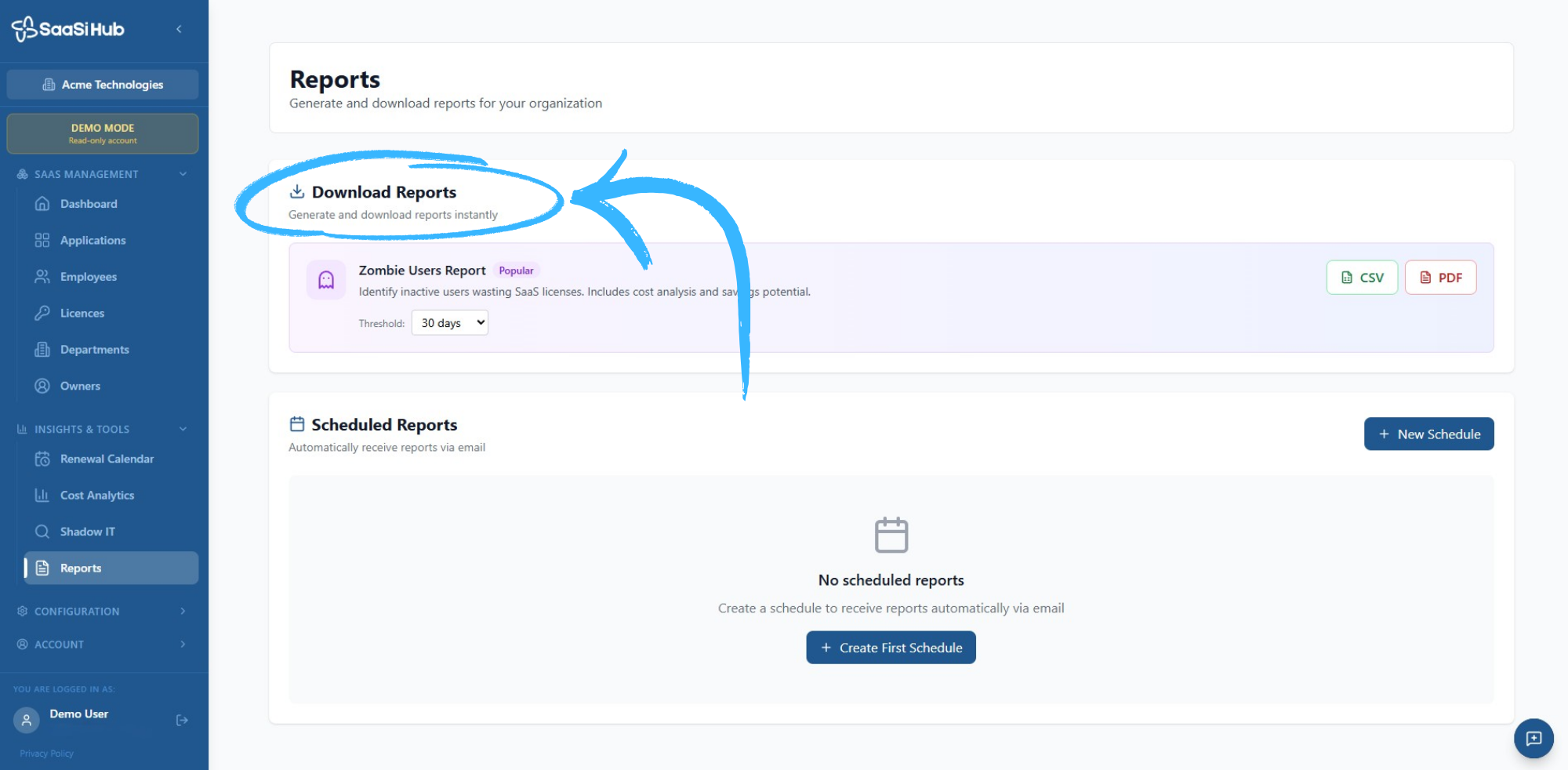
Currently, the reports area includes the ‘Zombie Users Report’, which helps identify inactive users who may be associated with SaaS licences that are no longer being used. The report includes information relating to potential licence waste and savings opportunities.
Choosing the Inactivity Threshold
Before generating the ‘Zombie Users Report’, you can select an inactivity threshold.
The threshold determines how long a user needs to have been inactive before they are identified within the report. For example, selecting 30 days will identify users who have been inactive for at least 30 days. The available threshold options can be selected directly from the report.
Choosing a Report Format
Once you have configured the report, you can download it in either:
- CSV format: CSV files can be useful when you want to work with the report data in a spreadsheet or perform your own analysis.
- PDF format: PDF reports are useful when you want to share a formatted report with colleagues or other stakeholders.
Scheduling Reports
SaaSi Hub also allows you to create ‘Scheduled Reports’, which can automatically send reports to recipients by email. This is useful if you regularly need to provide SaaS information to Finance, IT, Operations, management or other stakeholders without having to manually generate and send the report each time.
To create a scheduled report, select ‘New Schedule’ within the Scheduled Reports section. If you haven’t created any schedules yet, you can also select ‘Create First Schedule’.

Managing Scheduled Reports
Once you have created a scheduled report, it can be managed from the ‘Scheduled Reports’ section. This provides a central place to review the reports you have configured for automatic delivery.
Scheduled reporting can be particularly useful for recurring SaaS management processes, where the same information needs to be reviewed regularly rather than only when a specific issue arises.
When Should You Use Reports?
Reports are useful when you need to take information from SaaSi Hub and use it outside the main platform. For example, you might generate a report to:
- Review potentially inactive users and unused licences
- Share SaaS information with another department
- Support a regular internal review
- Provide information to management
- Analyse SaaS data in a spreadsheet
- Keep stakeholders informed through scheduled email reports
The most appropriate report will depend on the information you need and the reason you are generating it.
Reports and Other SaaSi Hub Features
Reports work alongside the other features within SaaSi Hub. For example, information identified through Cost Analytics, Renewal Calendar or Shadow IT can provide useful context when reviewing your wider SaaS environment, while reports give you a way to extract and share relevant information.
The reports area is therefore less about managing your SaaS subscriptions directly and more about turning the information within SaaSi Hub into something you can download, analyse and share.
In short, SaaSi Hub Reports allow you to generate useful SaaS information on demand or schedule reports for automatic delivery, giving you a simple way to analyse and share information about your SaaS environment.