
How To Connect Auto-Integration SaaS
SaaSi Hub’s auto-integrations allow you to connect supported SaaS applications directly to your account and automatically synchronise relevant information into your SaaSi Hub dashboard. Once connected, SaaSi Hub can synchronise available user, licence and application data, helping you maintain an up-to-date view of your SaaS environment without having to manually maintain the same information across spreadsheets and individual application admin panels.
What Are Auto-Integrations?
Auto-Integrations are ready-to-use connections for SaaS applications that SaaSi Hub currently supports. Examples include applications such as Google Workspace, Microsoft 365, Slack and Zoom, along with other supported platforms. You can see a full list of SaaSi Hub’s auto integrations here.
Depending on the application, the integration can provide information such as users, licences and relevant analytics. The available information can vary between applications depending on what the individual platform makes available. Once connected, this information can be viewed alongside your wider SaaS data within SaaSi Hub.
How To Connect an Auto-Integration
1) Head over to your SaaSi Hub account or login here (opens in new window)
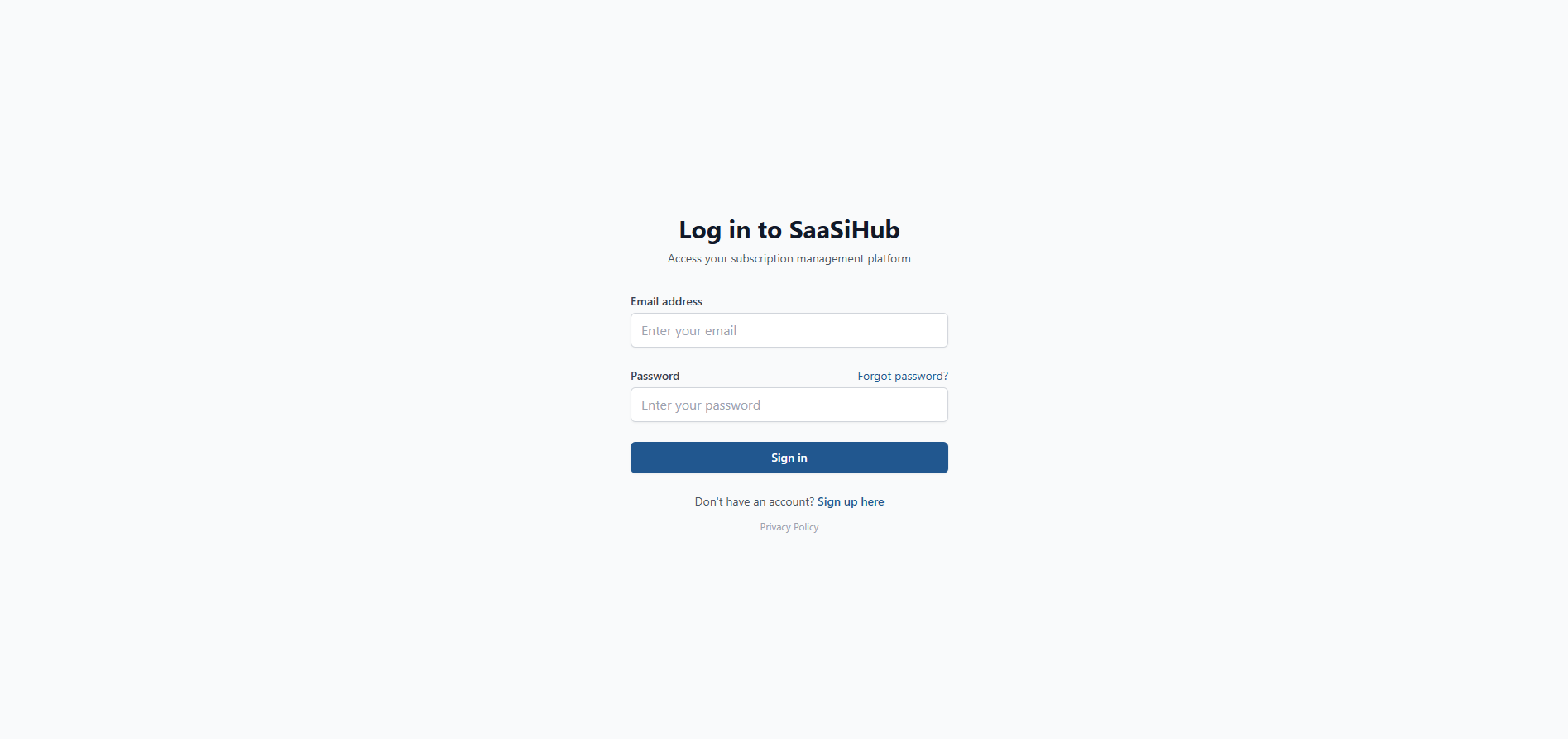
2) Navigate to the “Configuration” heading within your dashboard, located on the left hand side and press the small arrow next to it to open up the full configuration navigation menu.

3) Click on the “Auto Integrations” navigation link.

4) You’ll see a list of ready to connect auto-integrations, scroll down to see them all. You can use the search bar to find a specific SaaS brand. Simply click on a SaaS platform that your business uses, that you’d like to auto integrate into your SaaSi Hub dashboard.

5) Follow the prompts to fill in the authorisation details in order connect your company’s account for the SaaS application to your SaaSi Hub dashboard. This could be via OAuth, or with the main admin account details.

6) Press the “Connect” button at the bottom.

7) Repeat the process to connect all of our auto-integration tools, apps and platforms that your company uses.
8) Your auto-integrated SaaS apps will then start to automatically sync, with the data populating inside of your SaaSi Hub account. You’ll be able to see your connected SaaS apps under the “Applications” menu.

What Happens After an Integration Is Connected?
Once an auto-integration has synchronised, the information it provides becomes part of your wider SaaS management environment. This allows application information and data to be used, considered and consolidated alongside employees, licences, departments, owners, costs and other relevant SaaS information.
The exact information available will depend on the application and its integration.
What If My Application Isn’t Supported?
If the SaaS application that you want to manage isn’t currently available as an auto-integration, you can use self-integration (manual integration) instead. Self-Integrations allow you to manually add subscription information for applications that don’t currently have automatic integration support. This means unsupported applications can still be included within your wider SaaS management environment.
For more information, see how to connect self-integration (manual integration) SaaS.
Connecting Multiple Applications
You can repeat the same process to connect the supported SaaS applications your organisation uses. Connecting multiple applications allows SaaSi Hub to build a more complete view of your SaaS environment, helping you understand the relationship between applications, users and licences across the organisation.
Once your auto-integrations are connected, SaaSi Hub can handle the ongoing synchronisation automatically, reducing the need for repetitive manual updates.